The Mobile PDF Workflow: Scan, Sign, and Edit PDFs From Your Phone
#1The mobile PDF workflow: scan, sign, and edit from your phone
What we tested: We merged, split, and compressed PDF files using the WASM-based tools on this site. Processing was done entirely in the browser with files ranging from 100 KB to 50 MB.
PDF work often moves between a desk and a phone.
The practical split is simple: use the browser for batch PDF tasks, and use the phone when the document is physically in front of you or needs an immediate signature.
#2Why Split the Workflow at All
There's a natural division of labor in PDF work. Some tasks are fundamentally desk tasks, merging twelve files in a specific order, compressing a folder of scans before archiving, applying a watermark across a batch. A mouse, keyboard, and large screen make these fast, and a browser tool that runs entirely on your machine keeps the files private while doing it.
Other tasks are fundamentally mobile tasks, the paper document is physically in front of you, or the signature is needed now, in a meeting, away from any laptop. For those, fighting with a desktop scanner or emailing a photo of a form to yourself is the slow path. A phone with a good scanner and editor is the right tool.
The mistake is trying to force everything through one half. The efficient setup uses each where it's strongest and moves the file between them seamlessly.
#2The Mobile Half: Capture, Fill, Sign
The away-from-desk half of the workflow has three recurring jobs, and a well-built mobile PDF app covers all three in one place.
#3Scan paper into clean PDFs
The single most common mobile PDF task is turning a physical page into a usable file. The quality difference between "photo of a document" and "scanned document" is entirely in the processing: automatic edge detection to find the page in the frame, perspective correction to straighten it, and multi-page capture so a ten-page form becomes one clean PDF rather than ten crooked photos.
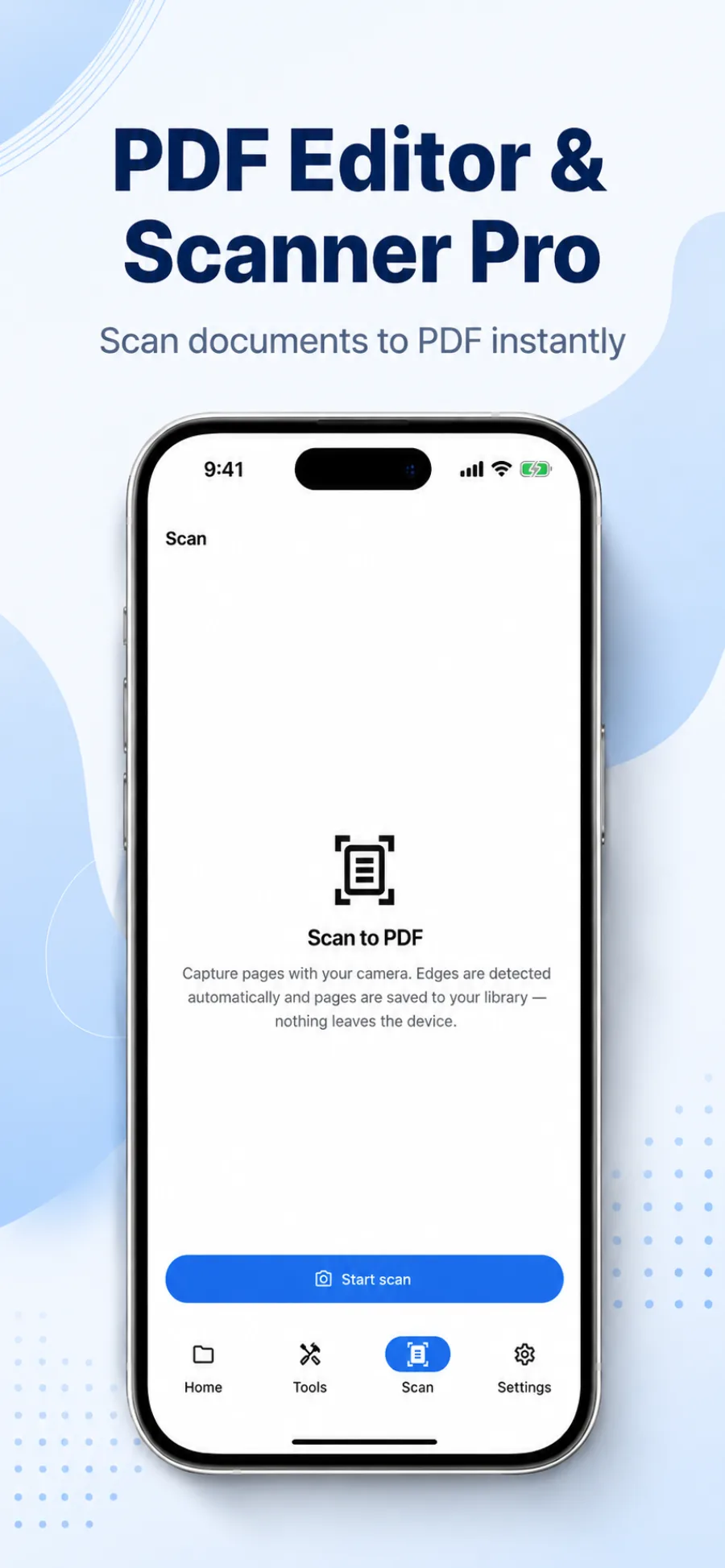
Auto-capture with edge detection is what makes the result look scanned rather than photographed, the app finds the document boundary, crops to it, and straightens the perspective before saving.
#3Fill forms and e-sign in place
The second mobile job is completing a document someone sent you: tapping into form fields to fill them, and applying a signature. A saved-signature feature, draw it once, reuse it forever, turns "print, sign, scan, email back" into a fifteen-second in-app action. This is the workflow that most often traps people at a desk when they don't need to be.
#3Annotate and mark up
Reviewing a document on the move, highlighting clauses, adding a sticky note, dropping a text box or a correction, is the third job. Pen, highlighter, eraser, and text tools cover the review pass you'd otherwise defer until you're back at a computer.
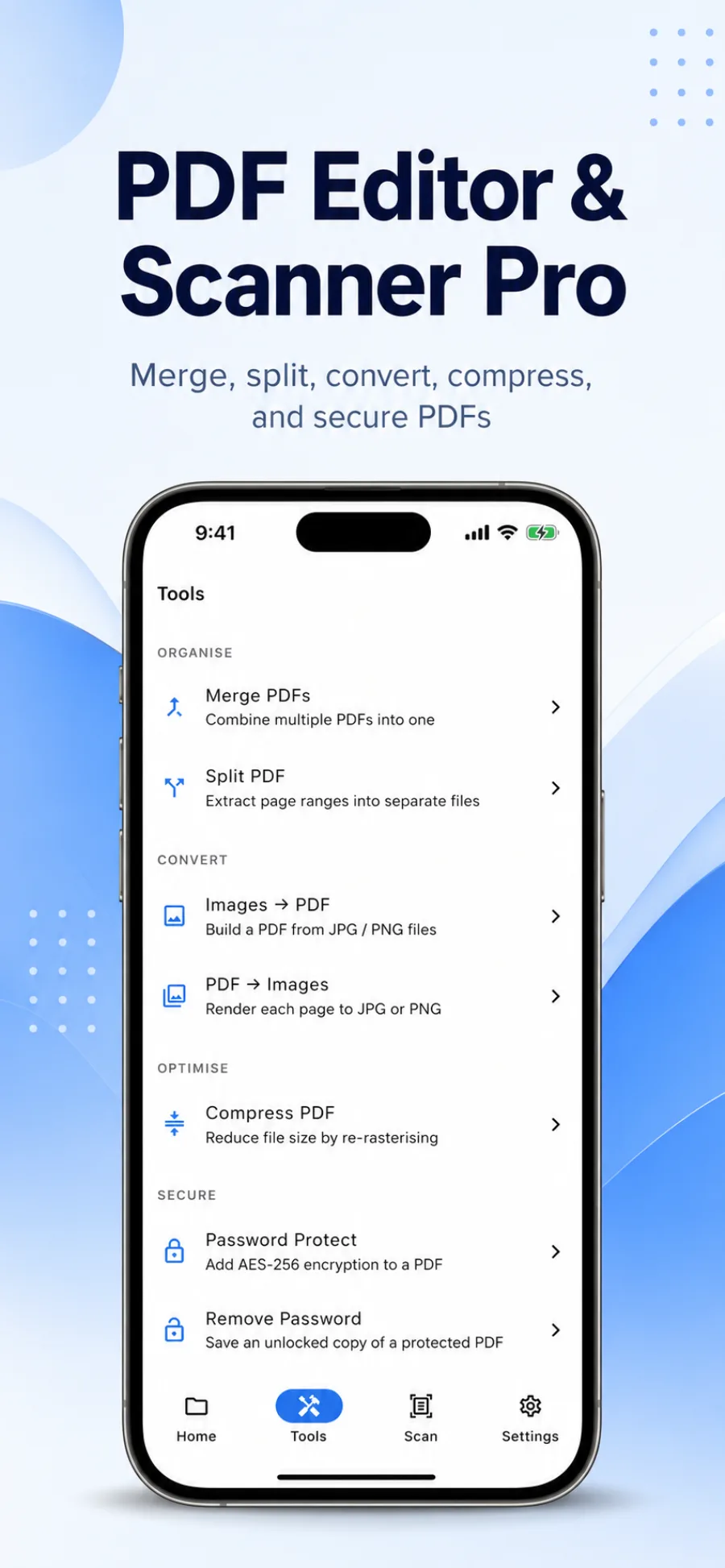
Having capture, annotation, form-fill, and signing in a single app, like PDF Editor & Scanner Pro, is the point: the file never has to leave the app to move between tasks, and it never has to leave your phone at all.
#2The Desk Half: Batch Operations in the Browser
Back at a computer, the browser tools take over for the operations that benefit from a big screen and don't need a camera. Everything here runs locally in your browser, the files never upload to a server, which matters for anything sensitive.
| Task | Tool | When you reach for it |
|---|---|---|
| Combine multiple PDFs in order | PDF Merger | Assembling a contract + appendices + signed pages into one file |
| Pull pages out or break a file up | PDF Splitter | Extracting just the signature page to send back |
| Shrink file size for email/upload | PDF Compressor | A batch of scans is too big to attach |
| Turn images into a PDF | Images to PDF | Bundling photos or screenshots into one document |
| Add or remove a password | PDF Password | Securing a document before sending, or unlocking one you own |
| Stamp a watermark | PDF Watermark | Marking a draft as CONFIDENTIAL or DRAFT before sharing |
The pattern in practice: scan and sign on the phone, then move the file to your laptop to merge it with the rest of the packet, compress the result, and password-protect it before it goes out. Or the reverse, split a page out in the browser, send it to your phone, sign it, send it back.
#2Keep the Documents Private
PDFs carry sensitive material, contracts, IDs, financial records, so where the processing happens is a real concern, not a footnote. Two principles keep documents yours:
On-device / in-browser processing. The browser tools on this site process files locally; nothing is uploaded. A good mobile app does the same, processing on-device by default rather than round-tripping your document through someone's server. PDF Editor & Scanner Pro emphasizes on-device processing and a biometric app lock for exactly this reason.
Scrub metadata before sharing. A PDF quietly stores author, software, and sometimes location and revision history. Before a document leaves your hands, check and strip that metadata, see our guide on scrubbing PDF metadata and preventing tracking, and inspect a file's hidden fields with the PDF metadata tool.
Quick verification from the command line. After scrubbing, confirm nothing leaked through with
exiftool:bash# Before scrubbing, reveals author, creation tool, even GPS coordinates $ exiftool contract.pdf | grep -iE 'author|creator|gps|location' Author: Jane Doe Creator: Microsoft Word for Mac 16.0 GPS Latitude: 37° 46' 48.00" N # After scrubbing, should return nothing $ exiftool contract-clean.pdf | grep -iE 'author|creator|gps|location' (no output)If any field still appears, run the metadata scrubber again before sending.
#2A Real End-to-End Flow
Putting both halves together, here's a contract-signing round-trip:
- Receive the draft contract by email on your laptop.
- Split off the signature page in the browser with the PDF Splitter and send it to your phone.
- Sign it in the mobile app, tap the field, apply your saved signature, with PDF Editor & Scanner Pro.
- Scan any accompanying paper (an ID, a receipt) with the app's edge-detect scanner in the same session.
- Merge the signed page and scans back into the full contract on your laptop with the PDF Merger.
- Compress and lock the final packet with the PDF Compressor and PDF Password, then send.
No printing, no dedicated scanner, no emailing files to yourself, and the document stays on your own devices the whole way through.
#2Frequently Asked Questions
#3How do I scan a paper document to PDF on my phone?
Use a dedicated scanning app rather than your camera's photo mode, the difference is in the processing. A scanning app uses automatic edge detection to find the document's borders in the frame, corrects the perspective so the page looks flat and square rather than photographed at an angle, and lets you capture multiple pages into a single PDF. Apps like PDF Editor & Scanner Pro auto-capture when the page is in focus and let you crop and straighten before saving. Once the scan is a PDF, you can move it to your computer to merge, compress, or password-protect it with browser tools like the PDF Merger and PDF Compressor.
#3Can I sign a PDF without printing it?
Yes, and it's far faster than the print-sign-scan cycle. A mobile PDF editor lets you tap into a document's fields to fill them and apply a signature you've saved once and can reuse, turning a signature request into a fifteen-second in-app action with no printer or scanner involved. Draw your signature a single time, and the app stores it for every future document. PDF Editor & Scanner Pro supports tap-to-fill fields and saved-signature reuse, so you can complete and return a form entirely from your phone. If you only need to sign one page of a larger document, split it out first with the PDF Splitter, sign it, and merge it back.
#3Is it safe to edit sensitive PDFs on my phone or in a browser?
It depends on where the processing happens. Browser-based tools that run entirely on your machine, like the PDF tools on this site, never upload your file to a server, so a sensitive contract or ID never leaves your computer. On mobile, choose an app that processes documents on-device by default and offers a biometric lock, so files aren't round-tripped through a cloud service; PDF Editor & Scanner Pro emphasizes on-device processing and a Face ID / biometric app lock for this reason. As a final step before sharing any document, scrub its hidden metadata, author, software, revision history, using the PDF metadata tool.
#3What's the best way to combine phone scans into one document?
Scan each page or document on your phone, then bring the resulting PDFs to a computer and combine them in the exact order you need with the PDF Merger, dragging to reorder is much easier on a large screen than on a phone. If your scans came out as separate image files rather than PDFs, use the Images to PDF tool to bundle them first. After merging, run the combined file through the PDF Compressor so a stack of high-resolution scans doesn't produce an unmailable file. A mobile app that captures multi-page scans directly, like PDF Editor & Scanner Pro, reduces how much merging you need to do in the first place.
The most efficient PDF workflow isn't desktop or mobile, it's both, each handling the half it's best at. Scan, fill, and sign on your phone when the document or the moment is physical; merge, compress, watermark, and secure in the browser when you're at a desk and the file needs batch work.
For the mobile half, scanning with edge detection, e-signing, and on-device privacy, PDF Editor & Scanner Pro puts the whole toolkit in one app. For the browser half, start with the PDF Merger, PDF Splitter, PDF Compressor, and PDF Password tools.
Written by Rahul Jalavadiya, founder of AllDevToolsHub. All tools run locally in your browser.
#2Sources / Further reading
- ISO - PDF 2.0 (ISO 32000-2:2020)
- W3C - Web Crypto API
- pdf-lib - JavaScript PDF library
Quick Summary
>- A practical guide to handling PDFs on the go — scanning paper with edge detection, filling and e-signing forms, merging and compressing files, and keeping documents private with on-device processing. How to pair browser-based PDF tools with a mobile PDF app so you can start a document at your desk and finish it from your phone.
Tools Mentioned in This Article
Images to PDF
Assemble a collection of images into a single professional PDF document.
Markdown to PDF Converter
Write Markdown and instantly generate a beautifully styled PDF.
PDF Compressor
Optimize PDF documents client-side using object streaming.
PDF Merger
Combine multiple PDF documents into a single file safely.
Tools, tactics, and toughened-up tips, once a week
New tools, deep-dives on developer workflows, and the occasional gem we found this week. No spam, no tracking. Unsubscribe anytime.
Found an error or have feedback?
We correct errors quickly and document changes in our changelog. Report issues at support@alldevtoolshub.com.